


Installing a cryptocurrency wallet is the first step into the Web3 world, but the process isn't always smooth. Users, especially beginners, often encounter various obstacles when downloading or launching wallet applications. These issues can typically be categorized into a few common types, each with clear solutions.
Problem One: App Store Displays "Unavailable" or "Not Found"
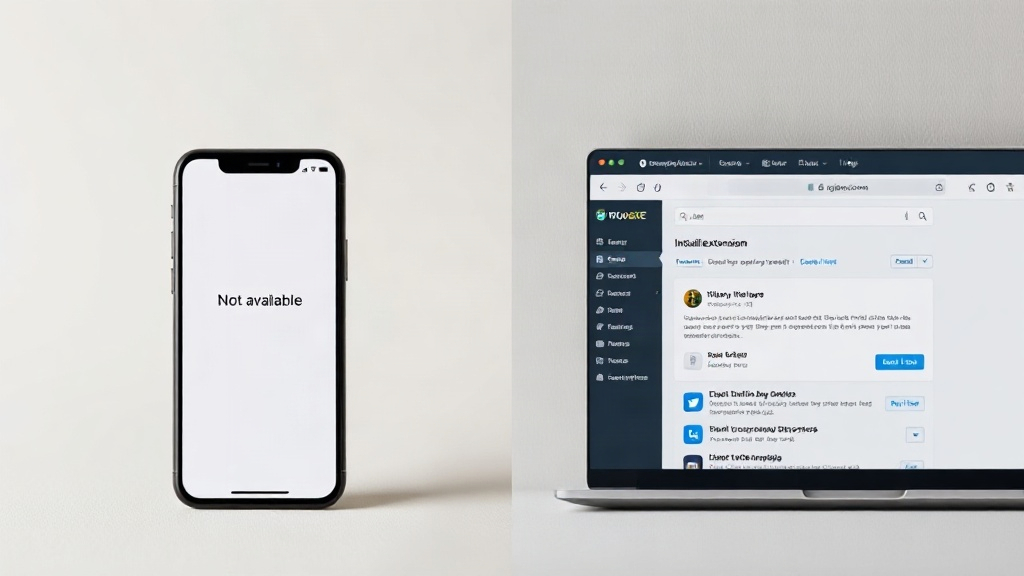
This is one of the most common issues, especially on mobile devices. Apple's App Store and Google's Google Play Store restrict app availability based on the user's account registration region and the device's GPS/IP location. If a cryptocurrency wallet app has not obtained the necessary compliance permits in your country or region, the app store will delist it or restrict downloads.
Solution:

- Confirm Official Information: First, visit the wallet project's official website or social media accounts to check their official announcements regarding regional support. Many wallets explicitly list supported regions.
- Use Official Channels: If the mobile app store is unavailable, some wallets (such as MetaMask, Trust Wallet) also offer desktop browser extension versions that can be downloaded directly from their official websites. For mobile devices, be extremely cautious about downloading APK installation packages from third-party websites, as this poses a very high security risk and may lead to downloading a fake wallet embedded with malicious code.
- Core Principle: Please rely on the wallet's official announcements and the laws and regulations of your location. If the official source explicitly states that your region is not supported, do not attempt to bypass restrictions through irregular means such as switching account regions, as this may lead to account suspension and legal and financial risks.
Problem Two: Download Interrupted or Extremely Slow
Unstable or interfered network connection is another major reason for download failures. Network service providers in some regions may throttle or block access to overseas app stores or specific types of app downloads.
Solution:
- Switch Network Environment: Try switching from mobile data to Wi-Fi, or connecting to a different Wi-Fi network. Sometimes, using a mobile hotspot to provide network to a computer can also improve connection quality.
- Check DNS Settings: Incorrect DNS settings can lead to domain name resolution failures. You can try temporarily changing your device's DNS to a public DNS, such as Google's 8.8.8.8 or Cloudflare's 1.1.1.1.
- Avoid Peak Hours: During peak network usage, download speeds may be affected. You can try downloading during off-peak hours.
Problem Three: Installation Fails with "System Version Too Low" or "Incompatible"
Wallet applications require a specific operating system version (e.g., iOS 14 or higher, Android 10 or higher) to function properly. If your device's system version is too old, you may not be able to install or run the latest version of the wallet app.

Solution:
- Update Operating System: Go to your device's system settings, check for available system updates, and upgrade to the latest stable version.
- Find Older App Versions: In rare cases, if the device truly cannot upgrade its system, you can try to find if the wallet's official website offers historical versions compatible with older systems. However, be aware that using older versions may expose you to known security vulnerabilities.
Problem Four: Installation Fails, Prompting Insufficient Storage Space
Wallet applications themselves do not take up much space, but the installation process requires additional temporary space. If the device's storage space is full, the installation process cannot be completed.
Solution:
- Clear Storage Space: Delete unused apps, photos, videos, or cache files to free up enough space for installation (it's generally recommended to reserve at least 1-2GB of available space).
- Use External Storage: Some Android devices support installing apps to an SD card; you can check relevant options in the system settings.
Overarching Security Guidelines
Regardless of the installation issue encountered, the following security principles are crucial:
- Download Only from Official Channels: For mobile devices, prioritize searching for official apps through Apple's App Store or Google's Google Play Store; for desktop, always download browser extensions or clients from the project's official website (e.g., metamask.io). Any download links provided via email, social media private messages, or unknown websites should be considered suspicious.
- Beware of Latest Threats: Even after successful installation, security challenges do not end. Recent security incidents show that hardware wallets may face supply chain attack risks, and third-party service provider vulnerabilities (such as the Trezor email service provider breach disclosed in October 2026) can also lead to phishing attacks. Never enter your seed phrase on any website or in any dialog box; a legitimate wallet application will never ask you for it.
- Perform Backups: Once the wallet is successfully created, immediately write down the generated seed phrase (usually 12 or 24 words) on paper and store it in a physically secure location. Never screenshot or store it on an internet-connected device.
When encountering installation problems, patience, systematically troubleshooting using the steps above, and always prioritizing security are key to a smooth start to your cryptocurrency journey.